
For kids ministry teams using Playlister
The right classroom.
The right remote.
Already using Playlister in your kids ministry? Open your classroom displays’ local controls from one free iPhone and iPad app, with names and rooms your volunteers recognize.
Playlister support is included in the current iPhone and iPad App Store release. An authorized Playlister installation and a reachable equipment network are required.
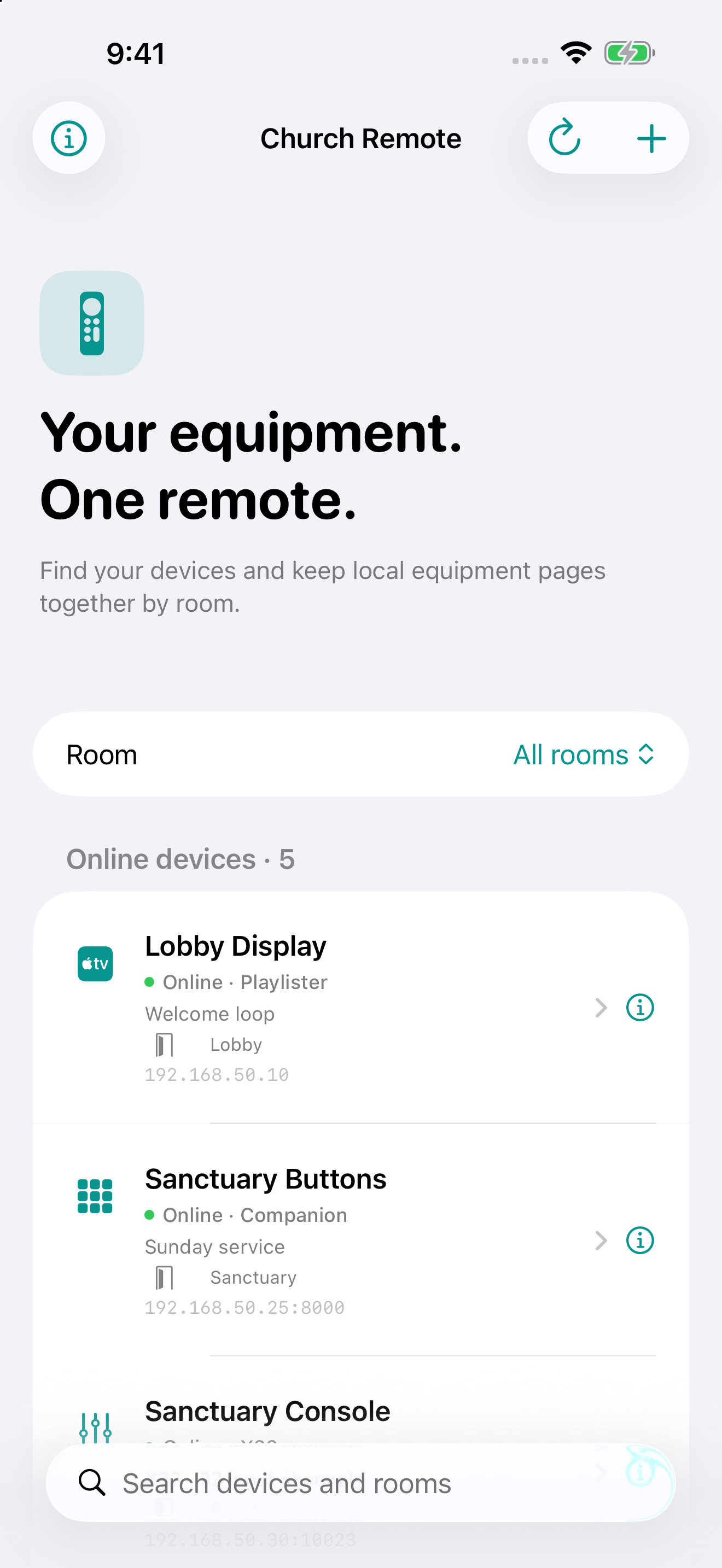
A familiar starting point for Sunday
Give each classroom a clear destination.
A volunteer should be able to find their room before opening its controls. Save each Playlister display with a useful name and room, then choose the right display from Church Remote.
Nursery
Nursery TV
Preschool
Preschool Playlister
Elementary
Elementary Screen
These are example names you can choose for your saved equipment.
Set up once. Start in the right room.
- Get on the equipment network. Keep Playlister running on the Apple TV. Connect the iPhone or iPad to a network that can reach it and allow Church Remote’s Local Network permission.
- Find your Playlister display. Open Find Devices and select the matching display. Manual setup is available when discovery cannot find it; use the local address and port for your installation.
- Name it for your team. In Device Details, choose a recognizable device name and its location and room. Check that the saved destination matches the classroom before opening its remote.
- Open the controls Playlister provides. Use the existing local Playlister remote inside Church Remote. Check the connection and try your normal classroom workflow before volunteers need it.
A phone or iPad that fits the room.
Use an iPhone for quick access or an iPad as your team’s classroom remote. Church Remote does not require its own account. Your Playlister service, permissions and content remain part of your existing setup.
Keep the device on the equipment network. Guest Wi-Fi, network isolation or a VPN can prevent the remote from connecting, even when both devices have internet access.
Questions from kids ministry teams.
Does Church Remote include Playlister or curriculum?
Use your own authorized Playlister installation or subscription and content you have permission to display. Church Remote opens your equipment’s local controls; it does not provide a Playlister license, curriculum or a content library.
Can a volunteer control a classroom from another network?
The iPhone or iPad must be able to reach that classroom’s Playlister device on your equipment network. Church Remote does not add an internet remote-access service. Ask your network administrator to confirm access between the phone or iPad and the display.
What if a display is missing or offline?
Confirm Playlister is running, check Local Network permission and verify the local address and port. Saved offline information helps you recognize equipment, but a saved entry does not establish that the display is connected or powered on. Read the connection checklist.
Help your team find its classroom remote.
Start with the Playlister setup guide, or send a setup question. Tell us what you want volunteers to do and where setup gets stuck. Keep passwords, pairing codes and private equipment details out of your message.
Sending a support message does not subscribe you to product updates.